AWS SSO Integration
Learn how to integrate AWS Single Sign-On (SSO) with Cokpit
Add an AWS SSO Integration
1. Register an AWS SSO OIDC Client
Method 1: AWS CLI
Create New Public Client
aws sso-oidc register-client \
  --client-name "my-app-name" \
  --client-type public \
  --region us-east-1
Create New Confidential Client
aws sso-oidc register-client \
  --client-name "my-app-name" \
  --client-type confidential \
  --region us-east-1
Response:
{
    "clientId": "63pyIfNsD..............",
    "clientSecret": "xyJraAQiOiJrZXktMTU...............",
    "clientIdIssuedAt": 1756928956,
    "clientSecretExpiresAt": 1764704956
}
Method 2: AWS Console
- Go to AWS IAM Identity Center
- In the left sidebar click "Applications" → "Create application"
- Select "OIDC"
- Fill details:
- Name:
my-app-name - Type:
PublicorConfidential
- Name:
- Click "Create application"
- Copy Client ID and Secret
2. Get Your AWS SSO Start URL
Method 1: AWS CLI
aws sso list-instances --region us-east-1Method 2: AWS Console
- Go to AWS IAM Identity Center
- In the left sidebar, click "Settings"
- Copy the "AWS access portal URL"
- Add
/startto the end
Example Start URL: https://your-domain.awsapps.com/start
3. User Initiates Integration
Step 1: Add AWS SSO Secret
- Click on Integrations from the left-hand pane.
- Select Cloud Provider and choose AWS SSO
- Click "Add Secret" to start AWS SSO flow
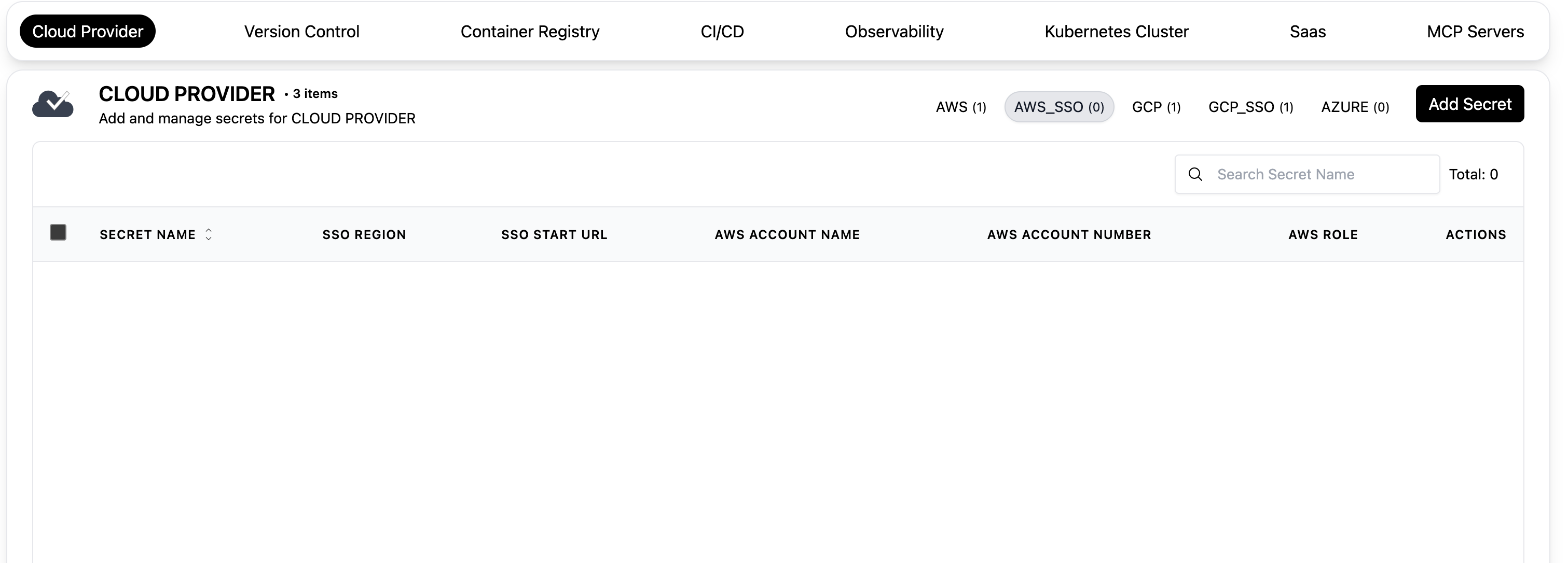
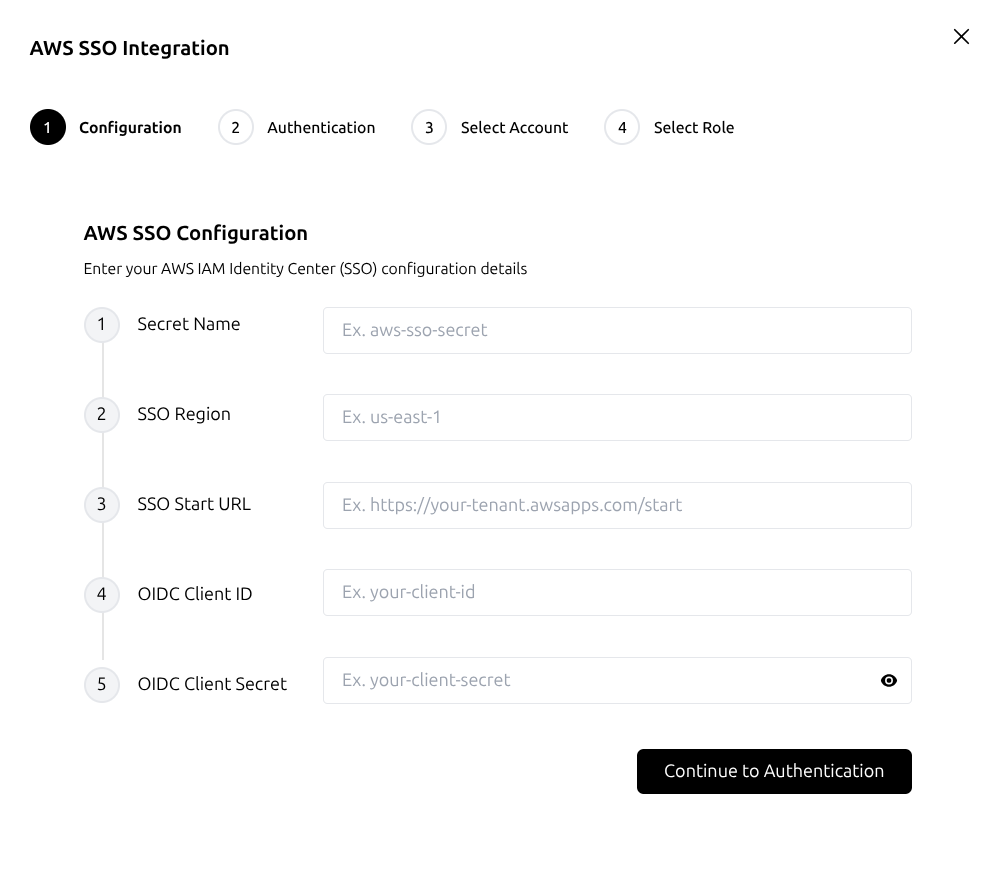
Step 2: Configuration
User enters all required fields:
- Secret Name:
my-aws-sso-secret(user-defined) - SSO Region:
your-aws-region(AWS region) - SSO Start URL:
https://your-domain.awsapps.com/start(AWS SSO portal URL) - Client ID:
your-oidc-client-id(OIDC client ID from AWS) - Client Secret:
your-oidc-client-secret(OIDC client secret from AWS)
Click "Continue to Authentication" to initiate AWS SSO and verify your identity.
Step 3: Authentication
AWS provides a verification URL and user code, which the user enters in a browser to complete SSO login.
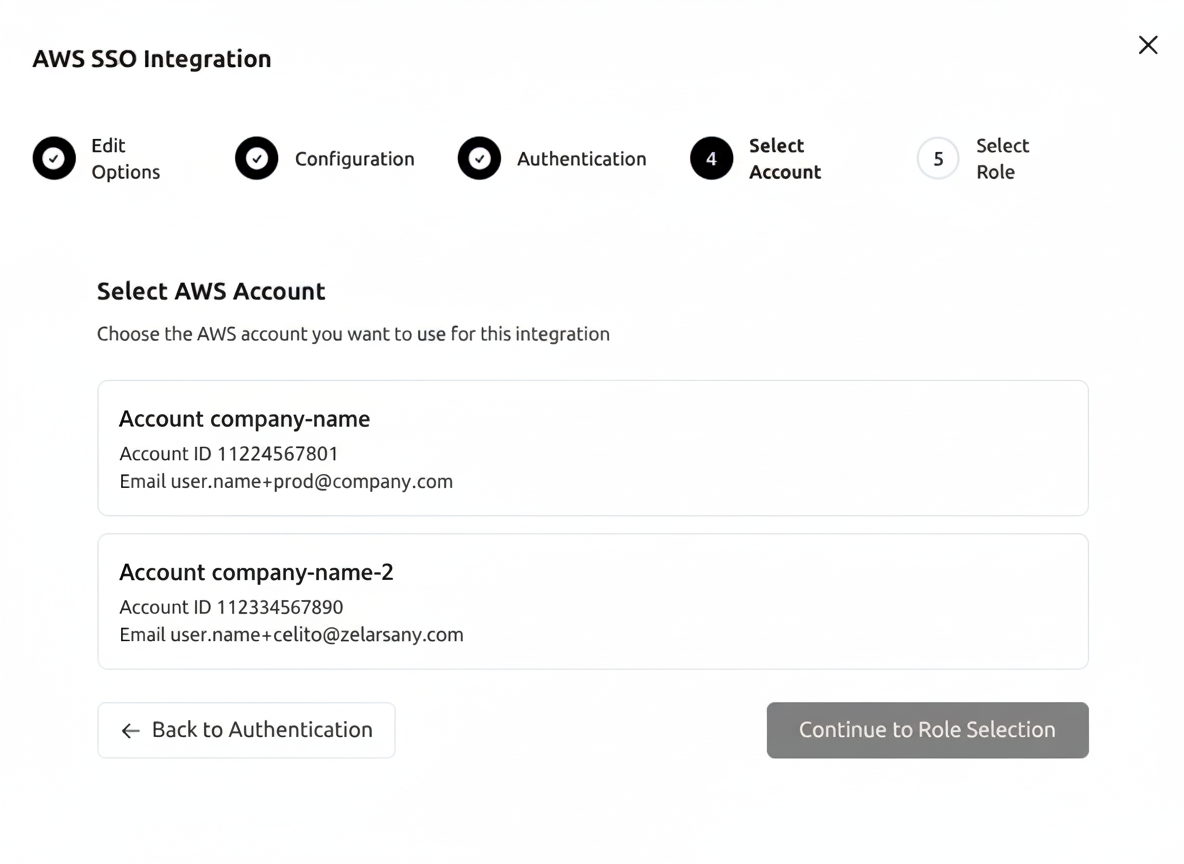
Step 4: Account Selection
The frontend displays the list of available AWS accounts for the user to choose from.
Step 5: Role Selection
The frontend displays the available roles for the selected AWS account.
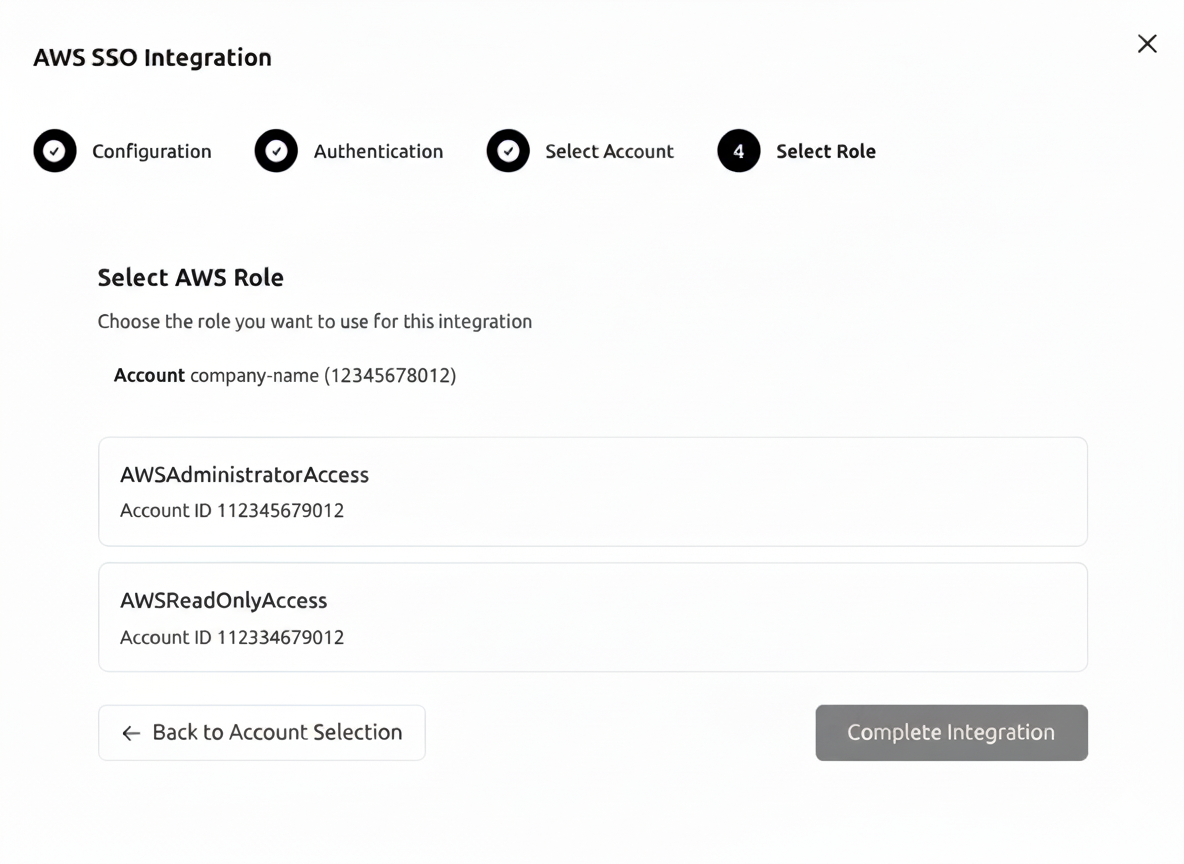
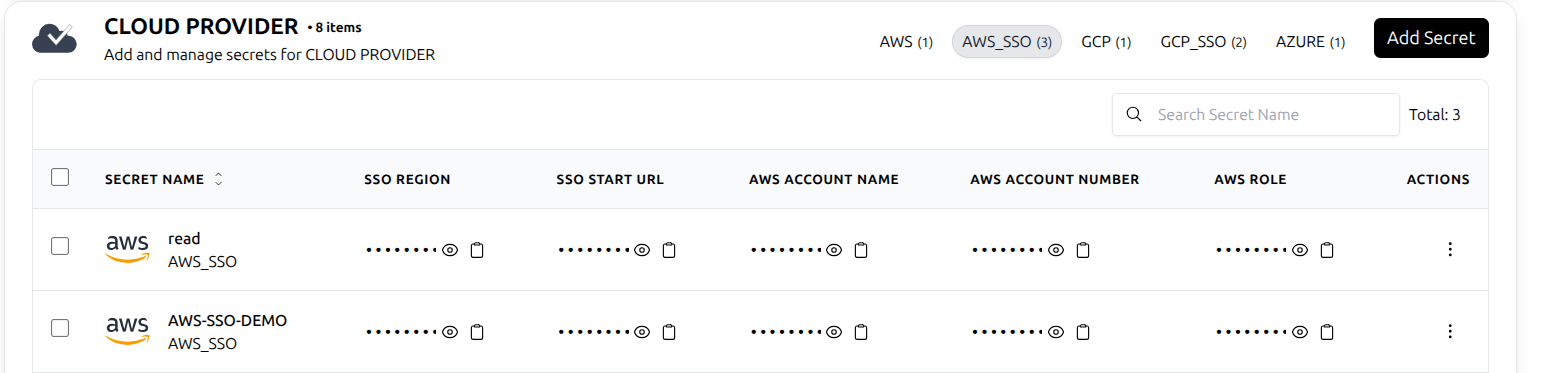
After saving, the AWS SSO secret appears in the list. Under Actions, you can edit, delete, or view details.
Note: Team members share the same credentials added to a team. If your team has five members, all five use the same team-level credentials.